Turn on suggestions
Auto-suggest helps you quickly narrow down your search results by suggesting possible matches as you type.
Showing results for
Windows Vista Basics
Windows Vista Basics
Topic Options
- Subscribe to RSS Feed
- Mark as New
- Mark as Read
- Bookmark
- Subscribe
- Printer Friendly Page
- Report to Moderator
- Plusnet Community
- :
- Library
- :
- Windows Vista Basics
Windows Vista Basics
16-09-2014
5:18 PM
1. The Start Button
In Windows Vista the button for the Start Menu has changed. It now looks like the Windows flag logo.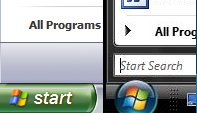
2. Searching from the Start Menu & Run
The search bar is built into the Start Menu.Search for anything on your computer e.g. a file/folder or Control Panel icon by typing it into the search bar. The results will appear as they are found.
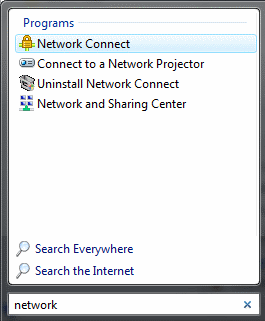
The search bar can also be used to run programs (like the Run option in Windows XP).
If you prefer to use the old prompt go to the Start Menu and choose All Programs > Accessories > Run.
3. My Computer
This is now called Computer. Computer isn't shown on the desktop by default. Instead you'll find it on the Start Menu.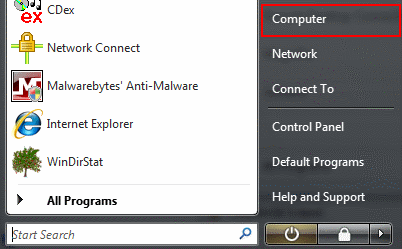
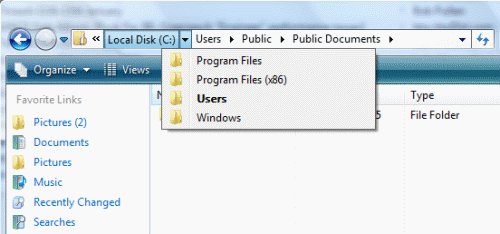
The address bar now uses breadcrumbs to aid navigation.
4. Shutdown & Restart
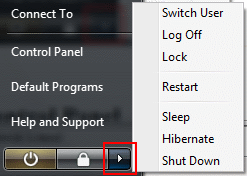
Both options are found under the Start Menu.Hibernate is the default option. Click the arrow next to the Shut down button to access Restart, Shutdown and other options.
[Top]
5. Control Panel
The Control Panel can be found under the Start Menu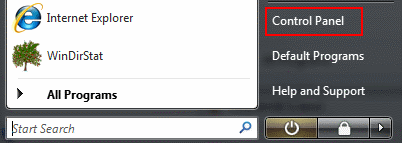
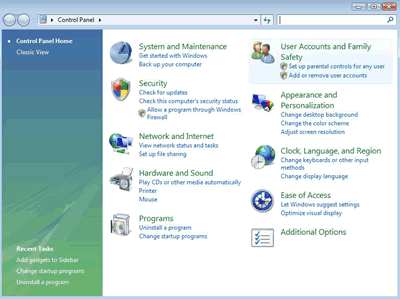
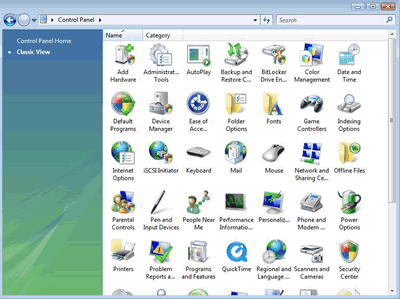
Control Panel Home is like the Category View in XP, whilst the Classic View maintains the approach of providing an alphabetical list of icons for all features.
6. Network Settings
In Category view, Network and Internet gives various options to set up and view the network status, share files, get to Internet Options and turn the Firewall on and off amongst other things.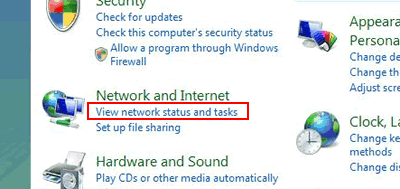
Click View network status and tasks (or Network and Sharing Centre in icon view) to get to the Network and Sharing Centre.
Here you can configure your network and sharing settings, as well as check the properties of the network adapters on your computer.
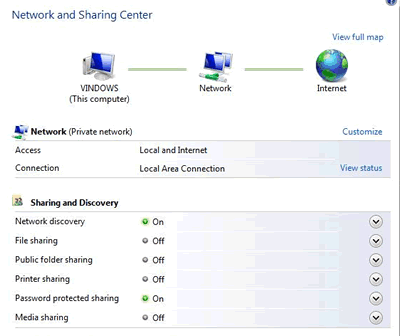
Clicking Properties gives the usual properties page, with a few new additions like IPv6. The Properties page for IPv4 are the very similar to the one featured in Windows XP and previous windows versions.
7. The Command Prompt
Located under Start > All Programs > Accessories > Command PromptAll the usual commands like ping, tracert, pathping, ipconfig and finger are present, with the exception of telnet. Telnet can be installed by doing the following - Click Start > Control Panel > Programs, and then Turn Windows Features on or off. In the list, scroll down and select Telnet Client. Click OK to start the installation.
8. User Account Control
One significant change in Vista is the introduction of a feature called User Account Control. If you try and run an administrative function and are logged in as an administrator then Windows will prompt for confirmation that you want to do this before allowing you to continue. A shield icon identifies commands that require administrator privileges.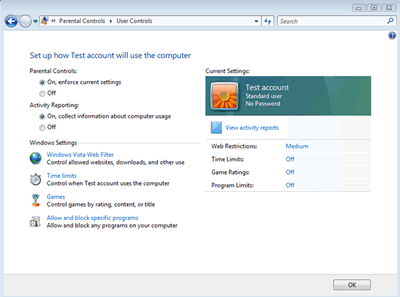
This is part of a much better approach to system security, but is a big change from the way that previous versions of Windows have worked. Read Microsoft's Account Control Overview for more information.
9. How to find out which version of Windows Vista you're using
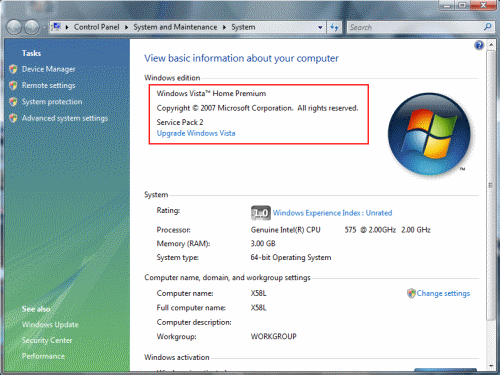
There are several versions of Windows Vista. If you're not sure which version you are running, do the following:Go to the Start Menu, right click on Computer and select Properties
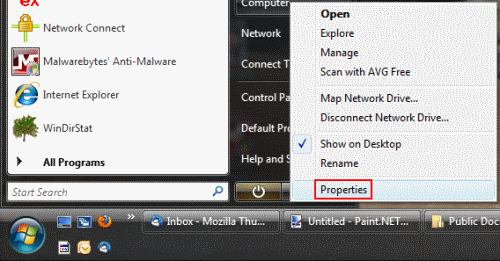
The edition of Windows Vista you are running is displayed with your computer details near the top of the window.