Turn on suggestions
Auto-suggest helps you quickly narrow down your search results by suggesting possible matches as you type.
Showing results for
Xbox 360: wired connection guide
Xbox 360: wired connection guide
Topic Options
- Subscribe to RSS Feed
- Mark as New
- Mark as Read
- Bookmark
- Subscribe
- Printer Friendly Page
- Report to Moderator
- Plusnet Community
- :
- Library
- :
- Xbox 360: wired connection guide
Xbox 360: wired connection guide
21-03-2012
11:00 PM
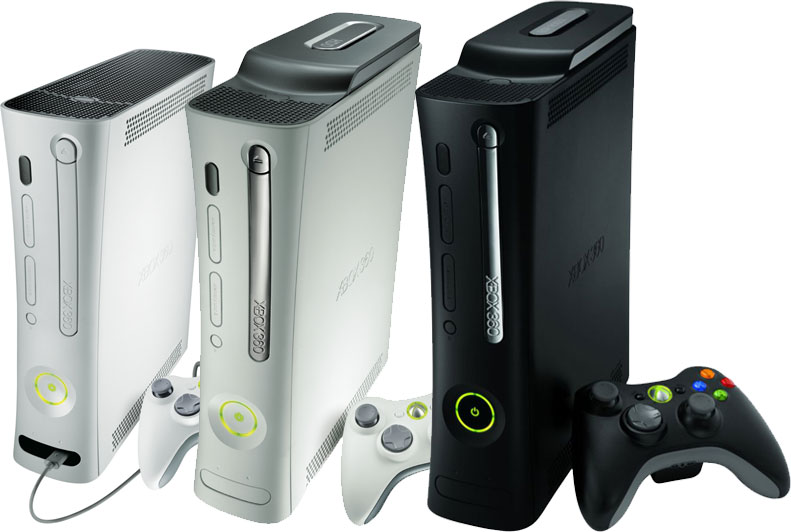 This guide will show you how to set up an Xbox 360 with an Ethernet cable. There are separate guides for connecting with wireless.
- If you see NAT warnings when setting up/playing games on Xbox LIVE, see our guide on Increasing gaming compatibility if you're using a Thomson 585 router. Otherwise, set up port forwarding to fix the problem.
- How to connect with to a router with Ethernet
- How to connect using ICS (Internet Connection Sharing - Windows Only)
1. How to connect with to a router with Ethernet
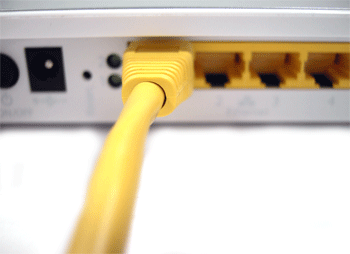
This is probably the easiest way to connect your Xbox 360 to your network. You can use a 1-port router but you'll need to switch it between your computer and Xbox 360 as you use them.You'll need:
- A 1-port or 4-port router
- 1 standard Ethernet cable
1. Connect the Ethernet cable to an Ethernet port on your router.
2. How to connect using ICS (Internet Connection Sharing - Windows Only)
If you're using a USB modem then you'll need to use Windows Internet Connection Sharing (ICS) to get your Xbox connected.With this method you'll need your computer switched on whenever you want to connect to Xbox LIVE.
To do this you'll need:
- A network interface card (NIC) in your computer
- 1 crossover Ethernet cable
1. Connect one end of your Ethernet cable to the Ethernet port on your computer.
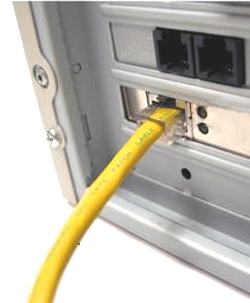
2. Then connect the other end to the Ethernet port on your Xbox 360.
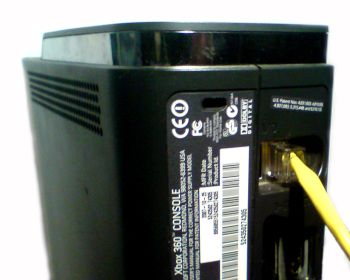
3. Setup Windows ICS on your PC to share your Internet connection - (these instructions are for Windows XP):
- On your computer, open the Network and Dial-up Connections folder
- Right-click on your Internet Connection and select Properties
- From the Properties window, click the Advanced Tab
- Tick Allow other network users to connect through this computer's Internet connection. If your computer has more than one network adapter, you'll need to select the one to use for sharing the Internet connection.
- Click OK. If your LAN network adapter already has an IP address assigned, Windows will warn you that it will change the IP. Click Yes to continue.
Once you've set up ICS make sure you can still get online with your PC.