
Turn on suggestions
Auto-suggest helps you quickly narrow down your search results by suggesting possible matches as you type.
Showing results for
Original Xbox (Xbox 1) Connection Guide
Original Xbox (Xbox 1) Connection Guide
Topic Options
- Subscribe to RSS Feed
- Mark as New
- Mark as Read
- Bookmark
- Subscribe
- Printer Friendly Page
- Report to Moderator
- Plusnet Community
- :
- Library
- :
- Original Xbox (Xbox 1) Connection Guide
Original Xbox (Xbox 1) Connection Guide
22-02-2010
11:00 PM
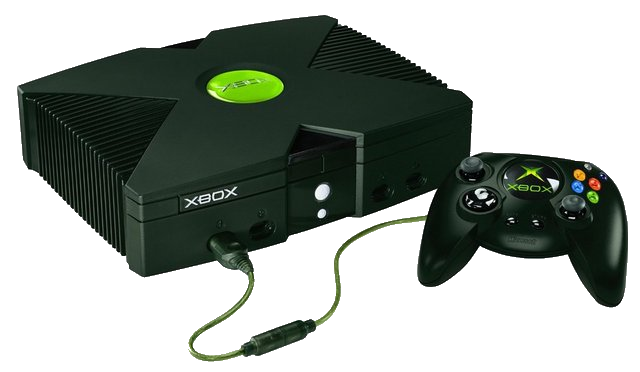
This guide will show you how to connect an original Xbox (pictured right) to Xbox LIVE. There's a separate guide for the Xbox 360.
Please note: Xbox LIVE access for original Xbox models was removed on April 15th 2010.
There are 3 ways to connect to Xbox Live:
- Direct Connection
The fast and simple way to connect to Xbox Live. - Router Connection
Play Xbox Live and connect your PC to the Internet at the same time with a broadband router. - Internet Connection Sharing
Play Xbox Live and connect your PC to the Internet at the same time. Requires a USB or PCI modem for your PC.
1. Direct Connection
Connection check list:
- An Xbox
- Broadband modem
- Standard Ethernet cable with RJ-45 connectors
Steps:
- Turn off your Xbox and modem.
- Connect the Ethernet cable to the Ethernet out port on your modem and the Ethernet port on the back of your Xbox.
- Turn on your modem. Now turn on your Xbox. Make sure there is no disk in the Xbox disk tray.
- Choose Xbox Live from the Xbox Dashboard.
[Top]
2. Router Connection
Connection check list
- An Xbox
- Broadband router with 2 Ethernet ports
- 2 standard Ethernet cables with RJ-45 connectors
- A spare Ethernet port on your PC (you may need to install additional Network Interface Card/s (NIC)
Steps:
- Turn off your hardware (PC, Router and Xbox).
- Connect the first Ethernet cable to an Ethernet port on your router and the Ethernet port on the back of your Xbox.
- Connect the second Ethernet cable to another Ethernet port on your router and the Ethernet port on your PC Network Interface Card (NIC).
- Turn on your router, then your PC.
- Check your PC can access the Internet - your router may require a specific configuration to do this with your PC. Refer to the router's instructions for specific support.
- Turn on your Xbox. Make sure there isn't a disk in the disk tray.
- Choose Xbox Live from the Xbox Dashboard.
[Top]
3. Internet Connection Sharing
Connection check list:
- An Xbox
- Broadband modem
- A standard Ethernet cable with RJ-45 connectors
- A cross-over Ethernet cable with RJ-45 connectors
- 2 spare Ethernet ports on your PC (you may need to install additional Network Interface Card/s (NIC) If you have a USB modem you will only need 1 Ethernet port
- A PC running Windows 98S, Me, 2000 Professional or XP
Steps
- Turn off your hardware (Xbox, broadband modem and PC).
- If you are using an external USB modem make sure this is connected to your computer.
- Connect the crossover Ethernet cable to a spare Ethernet port on your PC and the Ethernet port on the back of your Xbox.
- Turn on your broadband modem and PC.
- Setup Internet Connection Sharing in Windows to share your Internet connection with your Xbox. See Windows help section for more support.
- Once Internet Connection Sharing is set up, check your PC can connect to the Internet.
- Turn on your Xbox. Make sure there isn't a disk in the disk tray.
- Choose Xbox Live from the Xbox Dashboard.
Please note: if using Internet Connection Sharing you will need to have your PC switched on and connected to the Internet to play Xbox Live.
[Top]
If you're having difficulties with Xbox Live, or you're looking for fellow gamers, check out our lively games discussion forum.
0
Comments
35683
Views